TL;DR: Docker Desktop ships with a 1 TB virtual disk limit by default. On a 460 GB Mac that means Docker’s real limit is your entire machine, so a full disk doesn’t produce a Docker error — it kills the VM. Set a real limit (Settings → Resources → Advanced → Disk usage limit). If you just want commands, jump to the Quick Reference.
This is the third time macOS has warned me about low disk space and the answer turned out to be Docker. The first two times I pruned some images, felt clever, and moved on. This time Docker didn’t give me the chance — it died first.
What follows is the whole debugging session, including the parts where I was wrong, because the wrong turns were more instructive than the fix.
The Symptom: Docker Doesn’t Error, It Hangs
I noticed something was off when a docker ps in my terminal just… sat there. No error, no output, no prompt. VS Code’s own docker ps had been stuck for nine minutes.
My first instinct was that the daemon was down. But it wasn’t — not exactly:
pgrep -x "Docker Desktop"     # running
pgrep -f "com.docker.backend" # running
Everything looked alive. That’s the confusing part, and it has a specific cause: com.docker.backend is a host-side macOS process that holds the Unix socket, while the actual Docker engine runs inside a Linux VM. When the VM dies, the backend keeps accepting connections on the socket and simply never answers them.
So instead of “cannot connect to the Docker daemon”, you get an infinite hang.
The real error was in the host log the whole time:
grep -iE 'no space|GET /error' \
  ~/Library/Containers/com.docker.docker/Data/log/host/com.docker.backend.log | tail
[com.docker.backend.engines][E] engine linux/virtualization-framework run error:
  write <HOME>/Library/Containers/com.docker.docker/Data/log/vm/init.log: no space left on device
There it was. Docker Desktop had been sitting on a “Disk full” dialog whose only button was Quit, for three and a half hours, while I was doing something else.
⚠️ Note: If docker commands hang instead of failing, don’t waste time on the CLI. Go straight to com.docker.backend.log.
🚨 Problem #1: df Doesn’t Mean What You Think on APFS
Naturally I checked how much disk I had left:
df -h /
Filesystem      Size   Used  Avail Capacity  Mounted on
/dev/disk3s1s1  460Gi   17Gi   16Gi    53%   /
Stare at that row for a second, because on its face it’s gibberish. 17 GB used plus 16 GB available is 33 GB, not 460 GB. And 17 out of 460 is 4%, nowhere near 53%.
Nothing is broken. That’s just how df reports an APFS volume, and the row mixes two different frames of reference:
| Column | What it actually refers to |
|---|---|
Size | the whole APFS container, shared by every volume on the disk |
Used | what this one volume holds |
Avail | free space in the shared pool |
Capacity | Used / (Used + Avail) — not Used / Size |
So the percentage is 17 / (17 + 16) ≈ 52%, which lands on 53% once you use the exact byte counts behind those rounded figures. Size plays no part in it. You can confirm the formula yourself:
df -k / /System/Volumes/Data | awk 'NR>1 {printf "%-24s %.1f%% (reported %s)\n", $9, 100*$3/($3+$4), $5}'
Then there’s the second trap on top of the first: on modern macOS / is a sealed, read-only system snapshot holding just the OS. Your actual files live on a separate volume:
df -h /System/Volumes/Data
Filesystem      Size   Used  Avail Capacity  Mounted on
/dev/disk3s5   460Gi  404Gi   16Gi    97%   /System/Volumes/Data
97%, and there’s the real story.
Note that both lines report the same Avail — 16 GB — because all APFS volumes draw from one shared pool. So df -h / never actually hid the free space from me; it was right there. What it hid was how full the disk was. A tidy “53%” sitting next to “460Gi” reads as half a terabyte, half empty, and I moved on. The number that mattered was on the other volume.
Always check /System/Volumes/Data, and read the Avail column rather than the percentage.
🚨 Problem #2: The Sparse File Trap
Next, how big is Docker actually?
ls -lh ~/Library/Containers/com.docker.docker/Data/vms/0/data/Docker.raw
-rw-r--r--@ 1 sergii staff 1.0T Sep 7 16:36 Docker.raw
One terabyte. On a 460 GB drive. That is not a typo, and it’s not corruption either — Docker.raw is a sparse file. ls reports its virtual maximum size; only the blocks actually written consume disk.
For the real number you need du:
du -sh ~/Library/Containers/com.docker.docker/Data/vms/0/data/Docker.raw
80G
So: 80 GB real, out of a 1 TB ceiling. Hold that thought, because that ceiling turned out to be the actual bug.
Getting Docker Back
You can’t prune anything while the daemon is dead, so the usual playbook runs in reverse: revive Docker first, clean up second.
osascript -e 'quit app "Docker Desktop"'
pgrep -f 'com\.docker\.back[e]nd'   # note the PID, then kill -9 it
open -a Docker
until docker info >/dev/null 2>&1; do sleep 5; done; echo "daemon up"
Note the odd-looking back[e]nd in that pattern. My first attempt was the obvious one:
pkill -f "com.docker.backend"
…which killed my own shell. pkill -f matches against the full command line, and the shell running that command has com.docker.backend right there in its own arguments. So it matches itself first. The bracket trick breaks the literal match while still matching the target process.
The VM came back in about 90 seconds.
Where the Space Actually Went
With the daemon alive again, docker system df finally talked:
| Type | Size | Reclaimable |
|---|---|---|
| Images | 26.3 GB | 9.3 GB |
| Containers | 16.8 GB | 16.0 GB (95%) |
| Local Volumes | 31.2 GB | 0.9 GB |
| Build Cache | 10.0 GB | 5.3 GB |
Don’t bother adding those up against the 80 GB file — they won’t reconcile. docker system df reports logical sizes per category, where a layer shared between images is counted in each, while Docker.raw is physical allocation that also includes free space inside the VM’s filesystem waiting to be trimmed.
The safe stuff came off easily — docker image prune -a -f and docker builder prune -f gave back 12.9 GB, and removing devcontainers that had been idle for over three weeks freed another 10.5 GB.
But the volumes column bothered me. 31 GB, almost nothing reclaimable. So I looked closer:
docker system df -v
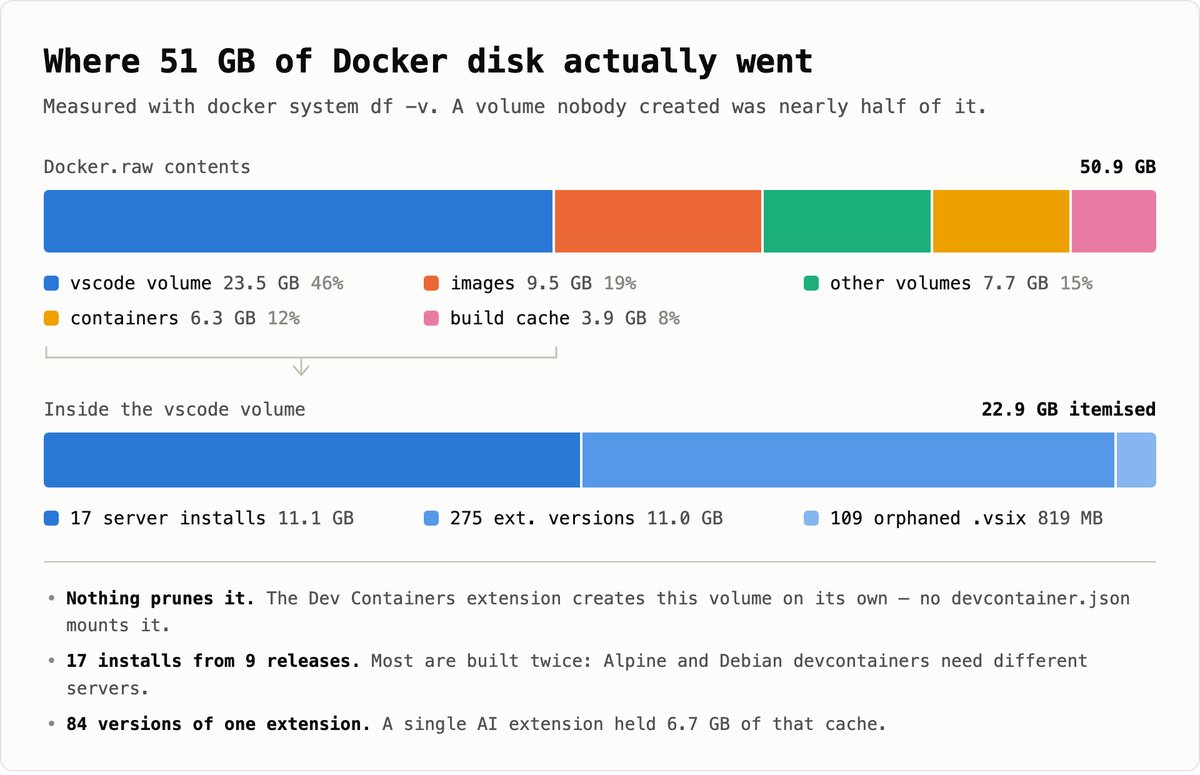
One volume was 23.5 GB. It’s called vscode, and I never created it.
The vscode Volume
If you use Dev Containers, you have this volume. The extension creates it automatically to cache the VS Code Server across container rebuilds — nothing in your devcontainer.json mounts it, it just appears.
Here’s what was inside mine:
11.1 GB  vscode-server/bin/              17 server installs
11.0 GB  vscode-server/extensionsCache/  275 entries
Seventeen copies of the VS Code Server. One directory per VS Code release, 470 MB–1.3 GB each, going back about nine months. Nothing ever deletes the old ones.
Why seventeen and not nine? Because I run both Debian-based and Alpine-based devcontainers, and those need different builds — so most releases are installed twice, once as linux-arm64 and once as alpine-arm64 (nine of the former, eight of the latter). Mixing base image families comes close to doubling this cache.
Then the extensions cache, which was the real surprise:
6.7 GB  anthropic.claude-code    84 cached versions
3.5 GB  openai.chatgpt           26 cached versions
Eighty-four versions of one extension. This isn’t a bug so much as an unlucky collision: the cache was designed when extensions updated monthly, and AI coding extensions now ship several releases per week. Every version is kept forever, per platform.
There were also 109 orphaned .vsix files (819 MB) with UUID names — interrupted downloads that VS Code never cleaned up.
🚨 Problem #3: The Freed Space Didn’t Come Back
I cleaned up 23 GB. Docker.raw shrank from 80 GB to 51 GB — Docker auto-TRIMs after a prune these days, so no manual fstrim needed.
Then I checked free space on the Mac: 16.8 GB → 15 GB. It went down.
The culprit is APFS local Time Machine snapshots:
tmutil listlocalsnapshots /
com.apple.TimeMachine.2026-09-07-172805.local
com.apple.TimeMachine.2026-09-07-195926.local
APFS is copy-on-write. Deleting data inside Docker.raw frees blocks within the disk image, but if a snapshot still references those blocks, they cannot return to the storage pool. macOS marks that space “purgeable” and reclaims it under pressure — which is exactly what failed to happen before the crash.
These snapshots expire on their own within roughly 24 hours, and sure enough, the next day my 17 GB showed up. If you need it sooner, this is what macOS itself runs under pressure:
tmutil thinlocalsnapshots / 30000000000 4
⚠️ Note: This only removes local snapshots. Time Machine backups on an external or network disk are untouched.
🚨 Problem #4: After a Crash, container prune Is a Trap
Standard advice for reclaiming space is docker container prune -f — it only removes stopped containers, so it’s safe.
It is not safe after a crash.
When the VM dies, every container that was running comes back as Exited (255). By status alone they’re indistinguishable from containers you stopped weeks ago. A blind prune would have deleted two devcontainers I’d been working in that morning.
The way to tell them apart is the stop timestamp:
docker inspect -f '{{.State.Status}}|{{.State.FinishedAt}}|{{.Name}}' $(docker ps -aq) | sort -t'|' -k2
exited|2026-07-31T05:41:27Z|marketing-site-devcontainer-1   <- idle 5 weeks
exited|2026-08-13T04:07:00Z|cli-tools-devcontainer-1        <- idle 3 weeks
exited|2026-09-08T02:11:48Z|data-pipeline-devcontainer-1    <- crash-killed
exited|2026-09-08T02:11:48Z|blog-devcontainer-1             <- crash-killed
Crash-killed containers all share the exact daemon-boot timestamp. Remove the genuinely idle ones by name, not with a blanket prune.
The Detour: I Wrote a Cleanup Script
Here’s where I went down a rabbit hole, and I’m including it because the ending is the useful part.
Since nothing prunes that vscode volume, I decided to write something that would: keep the two newest server installs per platform, keep the two newest versions of each extension, delete orphaned downloads older than a week, run weekly from a launchd agent.
It worked in a dry run on the first try. It was also badly broken, and it took four review passes to find out:
- It deleted the newest server install. A directory named with spaces got word-split by
for d in $(ls -1t), and the junk tokens consumed the “keep newest 2” slots. - It kept the oldest extension versions. BusyBox
ls -tsorts at whole-second granularity, so entries created in the same second fall back to alphabetical order. shellcheckpassed a scriptbash -nrejected. A heredoc inside a process substitution can’t parse — the entire cleanup section silently never ran.- The safety check failed open. If
docker toperrored, the “don’t delete in-use servers” guard protected nothing and reported success.
That last one deserves emphasis, because I only understood how dangerous it was later:
$ ls -la ~/.vscode-server/bin/
lrwxrwxrwx  a44adf7f... -> /vscode/vscode-server/bin/linux-arm64/a44adf7f...
~/.vscode-server/bin/<commit> inside the container is a symlink into the shared volume. Deleting a server directory doesn’t just clear a cache — it breaks the running server behind a live devcontainer’s symlink.
I eventually got the script correct, verified against a scratch volume seeded with adversarial names, a symlink pointing at a canary file, and a live devcontainer caught mid-update.
Then I deleted the script.
What I Should Have Done Instead
Two things, both of which existed the whole time.
First, there’s an official setting. The Dev Containers extension ships dev.containers.cacheVolume, default true: “Controls whether a Docker volume should be used to cache the VS Code server and extensions.” Set it to false and the shared volume doesn’t exist at all — the server lives in each container’s writable layer, which docker container prune reclaims.
I don’t recommend it for my setup, since my devcontainers pull :latest on open and get recreated often, so each recreation would re-download the server. But it’s there, and I built a cleaner for a cache that has an off switch.
Second, and far more embarrassing:
docker volume rm vscode
That’s it. The extension recreates the volume containing only the current server. One stock command reclaims the same ~23 GB my 200-line script did surgically. The script’s only advantage was avoiding a one-time re-download.
⚠️ Note: Verified against the docs and the extension manifest — VS Code ships no automatic cleanup for this cache and no setting to bound its size. There’s nothing you’re failing to enable. It just needs occasional emptying.
🚨 Problem #5: “Volume Is in Use”
Closing VS Code isn’t enough:
Error response from daemon: remove vscode: volume is in use -
[fc84e54f5be6..., 4cfc194a9ed7..., 7bc52795baa3..., 74a45f1ee2e0...]
docker volume rm blocks on any container that references the volume, running or not. Stopped containers still hold it. They have to be removed:
docker ps -a --filter volume=vscode --format '{{.Names}}\t{{.State}}'
docker stop <names>
docker rm <names>          # NEVER add -v
docker volume rm vscode
One of mine was still running despite VS Code being closed — it had restart: unless-stopped, so it had come back by itself after the crash and didn’t care whether an editor was attached.
Never add -v to docker rm. That takes the named volumes with it, which is where your credentials and databases live. Removing the containers themselves is cheap: source code is bind-mounted from the host, state lives in named volumes, and both survive. You lose the writable layer and rebuild on next “Reopen in Container”.
That took Docker.raw from 53 GB to 24 GB.
The Actual Root Cause
Everything above is housekeeping. Here’s the bug.
cat ~/Library/Group\ Containers/group.com.docker/settings-store.json
{
  "MemoryMiB": 16384,
  "UseVirtualizationFramework": true
}
No DiskSizeMiB key. None. Docker Desktop had never been given a disk limit, so it used the default — the 1 TB virtual maximum from earlier.
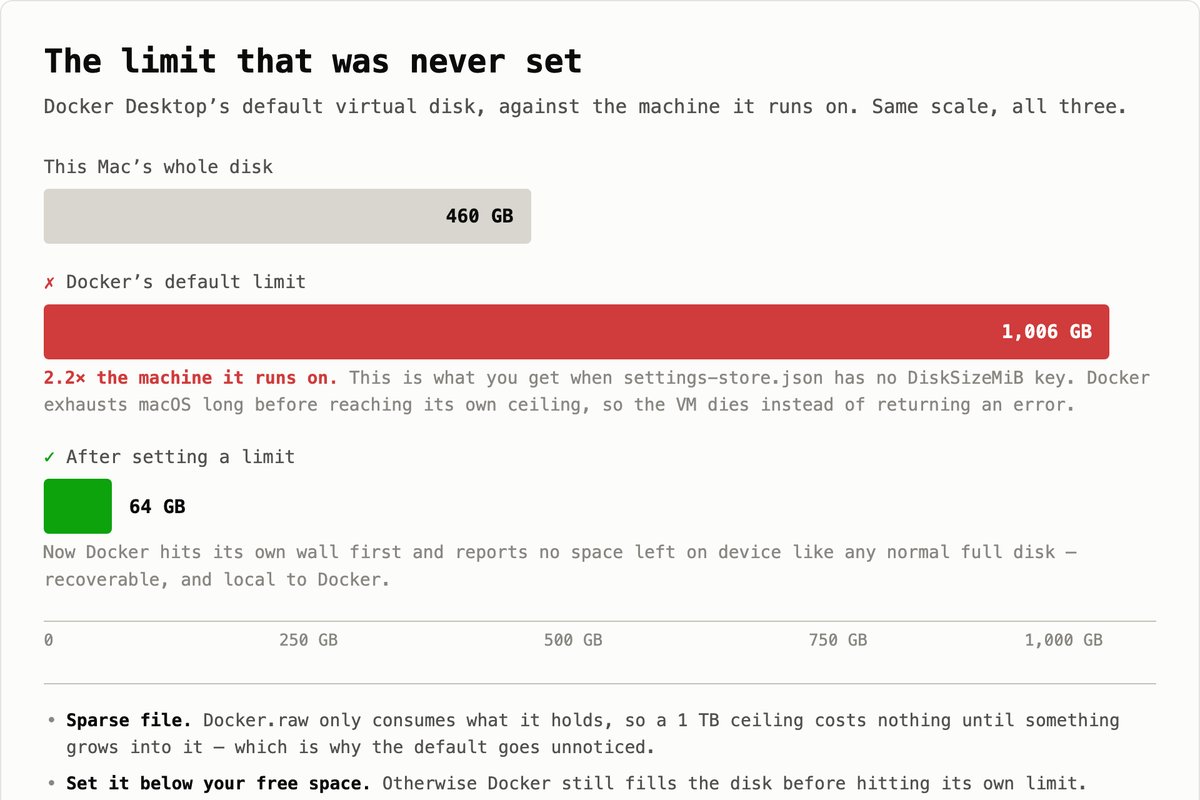
On a 460 GB Mac, a 1 TB ceiling means Docker’s effective limit is the entire machine. That’s why the failure was so violent. Instead of Docker hitting its own wall and returning a normal no space left on device to whatever was writing, it kept growing until macOS itself ran out — and the VM died mid-write.
The limit isn’t there to save space. It’s there to make the failure survivable and local to Docker.
Shrinking the Disk Wipes Everything
Docker Desktop is refreshingly blunt about this:
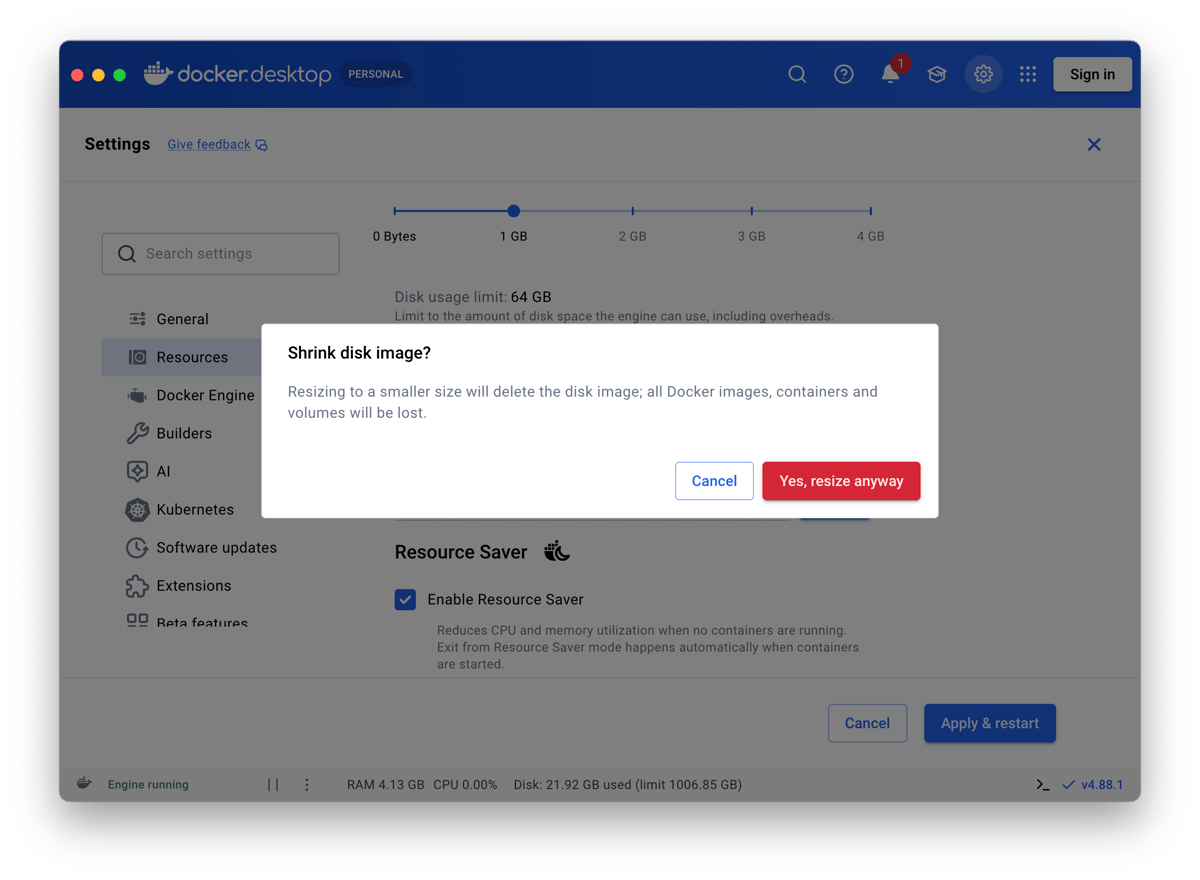
Resizing to a smaller size will delete the disk image; all Docker images, containers and volumes will be lost.
I’d hoped it might apply cleanly since my actual usage (24 GB) was already well under the new 64 GB limit. It does not care. It deletes the disk image regardless of how much data is in it.
Afterwards: 0 containers, 0 images, 0 volumes.
So back up your volumes first. The pattern is a throwaway container that mounts the volume, because the data isn’t reachable from macOS:
# Back up
docker run --rm -v <volume>:/data:ro -v "$PWD":/backup alpine \
  tar czf "/backup/<volume>.tar.gz" -C /data .

# Restore
docker volume create <volume>
docker run --rm -v <volume>:/data -v "$PWD":/backup alpine \
  tar xzf "/backup/<volume>.tar.gz" -C /data
The :ro on the backup mount guarantees the pass can’t modify the source. Ownership and permissions survive the round trip — my .credentials.json came back as -rw------- owned by uid 1000, and a Postgres data directory restored with the same 2,353 files it went in with.
⚠️ Note: alpine was inside the disk image too, so after the wipe the very tool you need to restore with is gone. docker pull alpine before you start — and don’t attempt any of this on a connection you don’t trust.
Three things worth knowing:
- Back up cold. Tarring a live Postgres data directory gives you an inconsistent snapshot. Stop the containers first; everything was already stopped in my case, which was convenient.
- Don’t back up what regenerates. Images re-pull,
node_modulesvolumes reinstall, container layers rebuild. I only archived credentials, shell history, and databases — 29 volumes, 683 MB total. The stuff that mattered was less than 1 GB out of 53. - Re-take the backup right before you pull the trigger. I had a full set from the day before and nearly used it. Re-running it, the checksums showed two volumes had changed in those 24 hours — a Claude config and an app’s data directory. The older set would have silently rolled back a day of work.
Which volumes actually matter
This is the part I got wrong, and it matters more than the commands above.
I picked volumes by name — a pattern matching claude-config, fish-data, pgdata and friends. It looked thorough. It wasn’t: volume names are arbitrary, and mine weren’t consistent across projects. Auditing every mount afterwards, the pattern had quietly skipped:
| Volume name | Mounted at | What was in it |
|---|---|---|
claude-code-config-* | /home/node/.claude | the same data, under a different name |
devcontainers-sandbox-config-* | /home/node/.claude | and again |
*-gh-config-* | /home/node/.config/gh | GitHub CLI auth tokens |
*-configstore-* | /home/node/.config/configstore | tool config |
One of those cost me: a project’s gh authentication went into the wipe and came back empty. Not fatal — one gh auth login — but silent, and I only noticed days later while chasing something unrelated.
The fix is to stop guessing from names and look at where each volume is mounted. Your devcontainer.json already declares it:
find ~/Code -maxdepth 4 -name devcontainer.json -not -path '*/node_modules/*' \
  -exec grep -hoE 'source=[^,]+,target=[^,]+' {} + \
  | sed 's/source=//; s/,target=/  ->  /' | sort -u
Anything landing on a home-directory path — ~/.claude, ~/.config/gh, ~/.local/share/fish, a database directory — is state you cannot regenerate, whatever it happens to be called. Anything landing in node_modules or the workspace is not.
And check what exists only on your machine. Two of my images were built locally rather than pulled, so “it’ll just re-pull” didn’t cover them — and confirming they could be rebuilt meant tracking down a project folder that had moved months earlier. Worth five minutes before a destructive step rather than after.
“Restored” is not the same as “back to normal”
Restore was 29 of 29, no failures. Then docker system df told me I had 1.6 GB of reclaimable volumes.
Every one of them was a credential or database volume I had just restored, for a project I hadn’t reopened yet. Docker calls a volume reclaimable when no container is currently attached — which says nothing at all about whether its contents matter.
A docker volume prune at that moment would have deleted the entire restore.
They stop looking reclaimable as you reopen each project and its containers re-attach. Until then the restore isn’t finished, it’s just staged — and the one command you might reach for to tidy up is the one that undoes it.
Bonus Round: Your Container Logs Never Rotate
While I was in ~/.docker/daemon.json anyway, one more thing worth fixing.
Every line your containers write to stdout goes to a log file on disk. The default json-file driver has max-size set to -1 — unlimited, with no rotation at all. A chatty dev server or a database logging every query grows that file forever, and it appears nowhere in docker system df.
json-file (default) | local | |
|---|---|---|
| Rotation | none | 20 MB × 5 files |
| Compression | no | yes |
| Cap per container | unbounded | ~100 MB |
{
  "builder": { "gc": { "enabled": true, "defaultKeepStorage": "5GB" } },
  "log-driver": "local"
}
docker logs works exactly the same. This only affects newly created containers, so right after a reset — when you have none — is the cheapest moment to change it.
Quick Reference
1. Check whether you have this problem
df -h /System/Volumes/Data          # NOT df -h /
du -sh ~/Library/Containers/com.docker.docker/Data/vms/0/data/Docker.raw
docker system df -v | grep -i vscode
2. Safe reclaim, in order
Docker’s own pruning guide covers what each of these removes.
docker image prune -f       # dangling only
docker builder prune -f
docker container prune -f   # NOT right after a crash - see Problem #4
3. Empty the VS Code cache volume
docker ps -a --filter volume=vscode --format '{{.Names}}\t{{.State}}'
docker stop <names> && docker rm <names>   # never -v
docker volume rm vscode
4. Set a real disk limit (destroys everything — back up first)
First, work out what needs backing up — by mount target, not by volume name:
find ~/Code -maxdepth 4 -name devcontainer.json -not -path '*/node_modules/*' \
  -exec grep -hoE 'source=[^,]+,target=[^,]+' {} + \
  | sed 's/source=//; s/,target=/  ->  /' | sort -u
Archive anything landing on a home-directory path, cold, immediately before you resize. Then:
Settings → Resources → Advanced → Disk usage limit. Pick a number below your typical free space; mine is 64 GB against a steady-state need of ~25 GB.
Afterwards, ignore the “reclaimable volumes” figure until every project has been reopened — those are your restored volumes waiting to be re-attached.
5. If freed space doesn’t appear
tmutil listlocalsnapshots /                    # list them first
tmutil thinlocalsnapshots / 30000000000 4      # then release ~30 GB of them
The second line deletes local snapshots — the on-disk “restore from earlier today” copies. Time Machine backups on an external or network disk are not touched. Run the first line on its own if you just want to look.
⛔ Do NOT run these
These are here so you recognise them, not so you run them. Both turn up constantly in answers about reclaiming Docker space, and both will delete data that has no backup. They are deliberately not written as a copyable block.
| Command | What it takes with it |
|---|---|
docker system prune with -a --volumes | Every volume not attached to a running container. Databases, credential volumes, anything a stopped container owned. |
docker volume prune with -a | The same set of volumes, without even the images to show for it. |
The trap is that “not attached to a running container” sounds narrow and isn’t. Stop a devcontainer, run either of these, and its Postgres data and stored credentials are gone.
To release one project’s volumes deliberately, use docker compose down -v in
that project’s folder instead. It is scoped to the thing you are actually
finished with.
Final Thoughts
The thing that actually fixed this was a single number in a settings file. Everything else — the seventeen server installs, the eighty-four cached extension versions, the orphaned downloads — is just growth, and growth is fine as long as it hits a wall that isn’t your whole computer.
What I keep coming back to is how much time I spent on the wrong solution: four review passes hardening a cleanup script, when the answer was one docker volume rm and a setting I hadn’t read. Not wasted — those bugs taught me how the cache works — but I was solving the symptom with great thoroughness while the cause sat one settings panel away.
Where I landed:
- ✅ Docker’s ceiling is 64 GB instead of my entire disk
- ✅ Container logs are capped at ~100 MB each instead of unbounded
- ✅
Docker.rawwent from 80 GB at its peak to 2.5 GB - ✅ Volume backups verified with checksums, because I’ll need them next time I resize
- ✅ No custom scripts, no scheduled jobs, nothing to maintain
…actually, hold on. That last one isn’t quite honest.
You do still have to brush your teeth. Docker Engine ships no image garbage collection — nothing prunes the dangling images that pile up every time a devcontainer pulls a rebuilt :latest, and I was carrying 2.5 GB of them within days. So every now and then:
docker image prune -f
That’s the entire maintenance burden. One command, no flags to remember, no risk — it only removes dangling layers, never a tagged image. Build cache handles itself through defaultKeepStorage, logs now rotate on their own, and the vscode volume needs emptying maybe once a quarter.
What changed isn’t that the growth stopped. It’s what happens when I forget. With the 1 TB default, forgetting eventually takes out the VM and every container in it, on a random Tuesday, with no warning. With a real limit, Docker reports no space left on device when something tries to write beyond it; I prune the dangling images, and I get on with my day.
If you’ve run into the same problem, I hope this write-up helps you reclaim the space without losing anything important. Knowing where to look — Docker’s disk usage limit and, for devcontainer users, the size of the vscode volume — can make the difference between an annoying afternoon and losing every container you have.
Have questions or run into different issues? Let me know in the comments!